![Locable Logo 3a3a3a Gray.png]](https://help.locable.com/hs-fs/hubfs/Locable%20Logo%203a3a3a%20Gray.png?height=50&name=Locable%20Logo%203a3a3a%20Gray.png)
Available for the Build, Grow & Coordinate plans on the Locable Marketing Platform
Guided Blogging makes it easier than ever to create meaningful, high-quality content. While Custom Posts give you full control over every detail, Guided Blogging streamlines the process with prompt-based guidance to help you craft a well-structured post in less time. This approach combines efficiency with flexibility, allowing you to choose the format and configuration options that best fit your needs.
As you get started, be sure to explore all the supported post types, learn where to access your drafts and published posts, and understand how Marketing Messages can extend the reach of your content.
Be sure to explore all of the supported post types, where to find drafts and published posts, and the role of Marketing Messages.
To get started, you can add blog posts through a couple of paths...
Go to Promote > Blog Posts and select 'New' OR click 'Post an Announcement' or 'Guided Blog' on your main Dashboard:
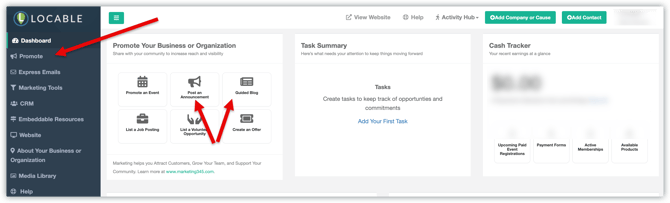
NOTE: Use an Announcement (or Quick Post) only for short, announcement-style updates (like reminders or quick news). For all other content (such as articles, spotlights, or stories) use a Guided Blog Post to create a more structured, polished piece.
Guided Blogging Options
If you choose one of our guided blogging templates, you’ll be walked through a series of prompts designed to help you quickly create a complete and engaging post.
For example, selecting the Event Preview template will prompt you to enter key details such as the event details, along with optional insights like what makes the event unique or tips for attendees.
These built-in prompts ensure you include all the essential information while making it easy to add a personal touch, resulting in a polished, ready-to-publish post in less time.
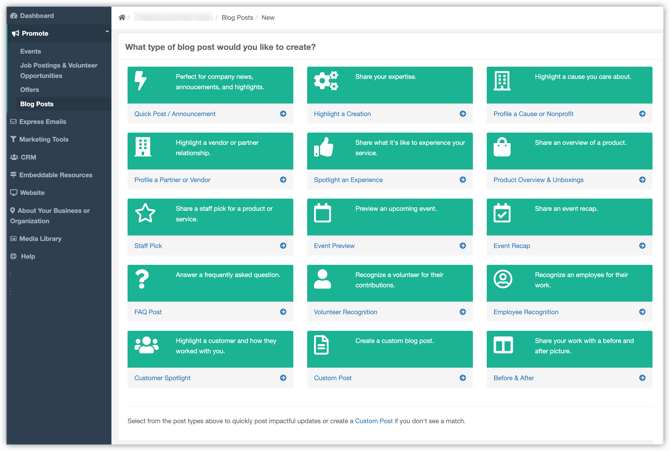
If you prefer to build your own structured post, choose a Custom Post. This option lets you add sections and images freely, without the built-in prompts that guide content in a Guided Blog Post.
Learn more about How to Create a Blog and Best Practices post here!