![Locable Logo 3a3a3a Gray.png]](https://help.locable.com/hs-fs/hubfs/Locable%20Logo%203a3a3a%20Gray.png?height=50&name=Locable%20Logo%203a3a3a%20Gray.png)
Available for the Build, Grow & Coordinate plans on the Locable Marketing Platform
Creating blog content is one of the most effective ways to keep your website fresh, improve search visibility, and give people a reason to visit and return.
Every post you publish adds keyword-rich content that supports your SEO efforts. Your posts can also be shared to social media and included in your email newsletter, helping you reach a wider audience and drive traffic back to your website.
Whether you want to publish a quick announcement or create a more detailed, structured article, you have flexible options to fit your workflow.
Why Blogging Matters
Regular blogging helps you:
-
Improve search engine visibility with fresh, relevant content
-
Highlight news, events, promotions, and community involvement
-
Establish authority and credibility in your industry
-
Share content to social media with just a few clicks
-
Include valuable content in your newsletter to stay top of mind
Even short updates can make a meaningful impact when published consistently.
To get started, you can add blog posts through a couple of paths...
Go to Promote > Blog Posts and select 'New' OR click 'Post an Announcement' or 'Guided Blog' on your main Dashboard:
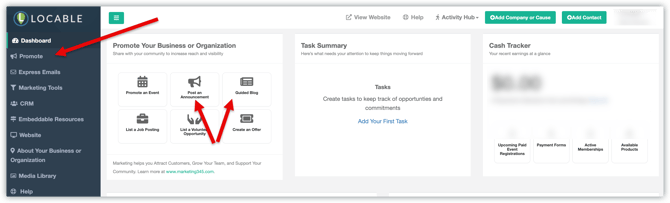
NOTE: Use an Announcement (or Quick Post) only for short, announcement-style updates (like reminders or quick news). For all other content (such as articles, spotlights, or stories) use a Guided Blog Post to create a more structured, polished piece.
Blog Post Options
When creating a new post, you will choose from three options:
1. Quick Post or Announcement
Best for short updates and time-sensitive content. Use this option when you want to:
-
Share a quick announcement
-
Promote a limited-time offer
-
Highlight a recent achievement
-
Post a brief community update
Quick posts are simple and fast to publish, making them perfect for staying active without spending a lot of time formatting.
2. Guided Blogging
Guided Blogging makes it easier than ever to create meaningful, high-quality content. Guided Blogging streamlines the process with prompt-based guidance to help you craft a well-structured post in less time. This approach combines efficiency with flexibility, allowing you to choose the format and configuration options that best fit your needs.
This option is ideal if you:
-
Want help organizing your thoughts
-
Prefer structured prompts to guide your writing
-
Want to create more in-depth, SEO-friendly content
- Want to layer in more images and create sections to better present your content
As you get started, be sure to explore all supported post types, learn where to access your drafts and published posts, and understand how Marketing Messages can extend the reach of your content.
For a detailed walkthrough of this feature, see our Guided Blogging help article.
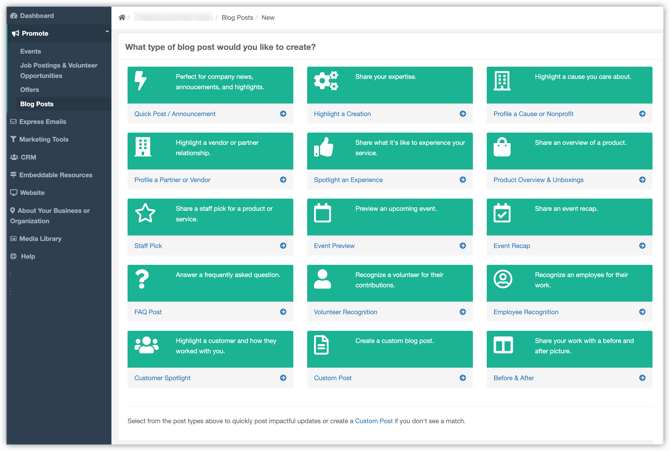
3. Custom Post
Custom Posts give you flexibility of creating content with multiple sections (like Guided Blogging) but without the prompts. Choose this option when you:
-
Have a specific format in mind and don't require prompting
-
Want full control over headings, images, and layout
This option is best for users who are comfortable building out content manually and want total flexibility.
Blogging Best Practices
Our best practices are designed to help you create well-structured, effective posts that engage your audience and drive results. In this section, we’ll walk through creating a custom post with sections, showing you how to organize your content, add visual interest, and incorporate key elements that make your posts more impactful and easier to read.
Creating an Engaging Custom Blog Post
A Custom Post is built from a series of sections that you create without prompts. By default, a new post starts with one section, but you can add more as needed.
Each section’s layout can be adjusted, allowing you to control the format and flow of your post, incorporate additional images, and fully customize the look and feel of your content.
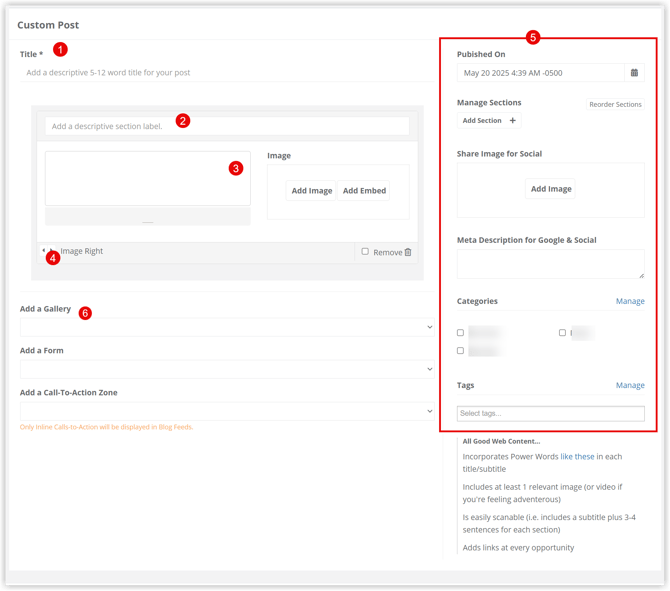
1. Title - Capture Attention & Improve SEO
Your title is critical for readership, social media engagement, and SEO. Keep it clear and simple, but ensure it includes relevant keywords or phrases that will resonate with your audience.
2. Add a Descriptive Section Label/Title
- This appears as a section header in your post.
- Readers can use it as a quick link to jump to sections of interest.
3. Section Content - Text & Imagery
Each section can include text and/or an image:
- Text Content: Use the text editor to format your content with lists, bullet points, or other details. Keep it concise but informative.
- Image/Media: Add a relevant image to complement your content.
Each section has 4 layout options:
✅ Image Right
✅ Image Left
✅ Full-Width Text
✅ Full-Width Image
(You can adjust the layout by clicking the arrows.)
4. Adjust the Layout of your section
You can cycle through layout options for your section: Full Text, Full Image, or Text and Image (left or right).
5. Optimize Your Post
Every post type allows for customization behind the scenes:
- Schedule a Publish Date – Choose a future date/time to automatically publish your post.
- Meta Description & Share Image – Helps with SEO and social media sharing.
- Categories & Tags – Organize your post for better discoverability.
- Learn more about Advanced Settings here.
6. Add Enhancements (Optional)
- Add a Gallery - First, create a gallery, then link it to your post. Learn more here: Understanding Photo Galleries.
- Add a Form - First, create a form, then link it here. Learn How to Create & Manage Forms & Form Submissions here.
- Add a CTA (Call-to-Action) - First, create a CTA, then link it here. Learn How to Create and Manage Calls-to-Action here.
Publish or Save Your Draft
- Click Publish to post immediately (unless a future publish date is set).
- Click Save Draft to continue editing later.
Following these steps will ensure your blog post is well-structured, engaging, and optimized for your audience.
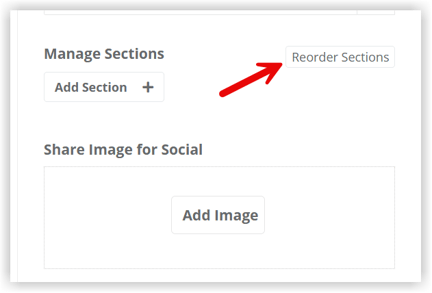
NOTE: You can reorder the sections by clicking Reorder Sections in the Advanced Settings and then dragging them up or down (requires a mouse i.e. not available on mobile or tablet).
Best Practices for Sharing on Facebook
To ensure your content looks great when shared on Facebook, we recommend following their current guidelines:
Recommended share image size: At least 1200 x 630 pixels for optimal display on high-resolution devices.
This size helps ensure your image appears sharp and correctly formatted in the post preview.
Our Suggested Approach for Quickly Creating a Great Custom Post
Custom Posts offer you flexibility, but we often see a common need to include 2–5 images. Here’s our recommended structure:
-
Start with a Full-Width Image
- Use the default Content Block to showcase your main image prominently.
-
Add a Full-Width Text Block
- Introduce your post with key details and context.
-
Alternate Image & Text Blocks
- Add a block with the image on the right and the accompanying text.
- Add another block with the image on the left and the accompanying text.
(Note: You can adjust the layout of each section by clicking the arrow in the bottom left-hand corner of the section.)
-
Repeat as Needed
- Continue adding alternating image and text blocks based on the number of images you have.
- Adjust text placement by cutting and pasting to ensure a balanced layout.
-
End with a Full-Width Text Block
- Wrap up your post with a strong conclusion and a clear call-to-action (CTA) to encourage engagement.
Following this structure will help create a visually engaging and well-organized Custom Post.

Extend the Reach of Your Content
Once your post is published, you can:
-
Share it to your connected social media accounts
-
Include it in your email newsletter
This ensures your content works harder for you by reaching audiences across multiple channels, all while driving traffic back to your website.
Important: Facebook shares are only available for published content. If a blog post has a future publish date, you'll be able to create a Facebook share from the Distribution page after the content is published.