![Locable Logo 3a3a3a Gray.png]](https://help.locable.com/hs-fs/hubfs/Locable%20Logo%203a3a3a%20Gray.png?height=50&name=Locable%20Logo%203a3a3a%20Gray.png)
Available for the Build, Grow and Coordinate plans on the Locable Marketing Platform
Custom classes are a simple way to control how your content looks on the page. They let you apply built-in styling, like spacing, background treatments, or layout adjustments, without needing any technical or coding knowledge.
Think of custom classes like labels you attach to a block of content: Hero, Content Blocks, Columns, Simple Text blocks, and various Embed feeds (Embeddable Resources).
These are applied to one block at a time, which means you can style specific sections without affecting the rest of the page. When added, the system knows how to display that block based on rules that are already set up behind the scenes.
This article gives you a basic, easy-to-follow overview of how built-in custom classes work and how to apply them.
NOTE: If your website includes custom design elements, our team can also provide you with a separate, personalized guide showing exactly which classes are used on your site and how to use them.
What Are Custom Classes?
Custom classes are prebuilt styling options created by our platform. When you add one to a block, you are telling the system to apply a specific look or behavior to that block.
You do not need to know how the styling works behind the scenes. You only need to know which class to use and where to add it.
Custom classes are commonly used to:
-
Add space around content
-
Adjust background colors or sections
-
Create visual separation between sections
-
Improve readability and layout
How to Add a Custom Class to a Block
Adding a custom class only takes a few steps.
-
Click on the block of content you want to style.
-
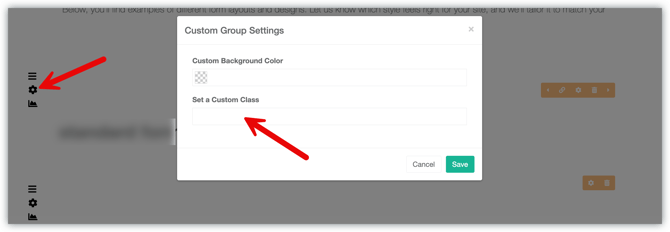
In the block toolbar, click the gear icon to open the block settings.
-
Find the field labeled Set a Custom Class.
-
Type the class name into the field.
-
Save the element update.
Once the page is saved, the styling will be applied automatically.
Common Built-In Custom Classes
Every website includes a small set of built-in custom classes that are safe to use and work the same way across sites. These are typically used for basic spacing, layout, and visual structure.
Below are examples of common types of built-in classes you may see and use:
p-t-0
What it does:
Removes extra space at the top of the content block.
When to use it:
Use this when there is too much space above content and you want sections to sit closer together.
p-b-0
What it does:
Removes extra space at the bottom of a column or content block.
When to use it:
Use this when there is too much space below content and you want sections to sit closer together.
m-t-0
What it does:
Removes extra space above a block or section.
When to use it:
Use this when there is too much space between this block and the content above it, and you want them to sit closer together.
Good to know:
This affects spacing outside the block, not the content inside it.
m-b-0
What it does:
Removes extra space below a block or section.
When to use it:
Use this when there is too much space between this block and the content below it.
Good to know:
This affects spacing outside the block and does not remove any content.
NOTE:
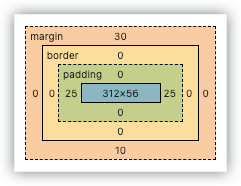
Padding (p-) controls the space inside a content block. This is the space above or below the text, but still within the block itself.
Margin (m-) controls the space outside the content block. This is the space between one block and the blocks around it.
Quick reference:
-
Padding = space inside the block, around the content
-
Margin = space outside the block, between blocks
hide-button
What it does:
Hides the linked button in a column.
When to use it:
Use this when you want the image in a column to act as the clickable link instead of showing a separate button.
parallax
What it does:
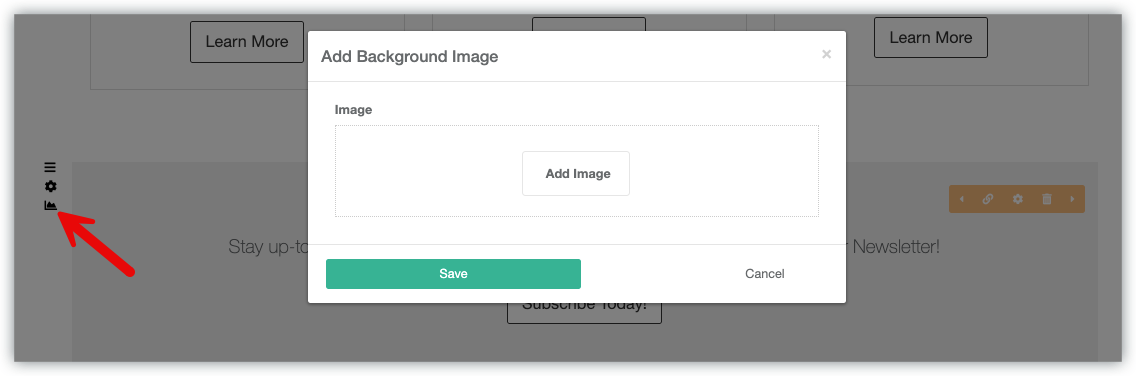
Creates a subtle scrolling effect of the content block's background image, if set.
When to use it:
Use this on sections with background images when you want a more dynamic, visually engaging effect as visitors scroll. Parallax works best on larger background images and should be used sparingly.
narrow-column
What it does:
Narrows the overall width of a content block.
When to use it:
Use this for text-heavy sections to improve readability or when you want content to feel more focused and less wide on the page.
Using More Than One Custom Class
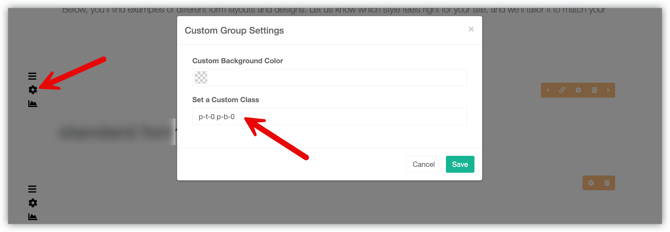
You can apply more than one custom class to the same block if needed. To do this, enter multiple class names in the Custom Classes field, with a single space between each one.
For example: Spacing classes like p-t-0 and p-b-0 are often used together to fine-tune how content lines up within columns or sections.
Keep It Simple
Most content blocks only need one or two custom classes. Using too many can make it harder to keep your design consistent.
Only use class names that have been provided by our team.
What If My Site Has Custom Design Elements?
Some websites include custom coding to style elements of your website, using design work that goes beyond the standard built-in classes. If your site has custom styling, we are happy to provide additional details tailored specifically to your website.
When to Contact the Support Team
Custom classes are intended for basic, repeatable styling. Please reach out to our Support Team if you want to:
-
Create a new layout
-
Change the design in a major way
-
Use a class you are unsure about
-
Add something that is not covered in your class list
We are always happy to help and make sure changes are applied correctly.