![Locable Logo 3a3a3a Gray.png]](https://help.locable.com/hs-fs/hubfs/Locable%20Logo%203a3a3a%20Gray.png?height=50&name=Locable%20Logo%203a3a3a%20Gray.png)
Available for the Build, Grow and Coordinate plans on the Locable Marketing Platform
Embeddable Resources are flexible ways to display curated content and places together on your website.
They allow you to organize and present information such as events, blog posts, offers, job postings, volunteer opportunities, businesses, and points of interest in purpose-built formats.
Each Embeddable Resource has a specific role, for example:
-
Calendars display and organize a list of events
-
Directories showcase a list of businesses, organizations, or places
- Content Feeds display dynamic collections of content, such as blog posts, news, or announcements
-
Guides combine multiple content types and locations into a curated experience (COMING SOON)
-
Itineraries organize activities, places, and content into a suggested plan (COMING SOON)
These Resources are designed to work together, making it easy to present related information in meaningful ways across your site.
All Embeddable Resources can be added to any website using an embed code, or installed directly as a block when using Locable’s native website builder.
How Embeddable Resources Fit Into Your Web Pages
Each webpage in your Locable site is built using one or more content sections, including: Hero, Content Blocks, Columns, Simple Text blocks, and various Embed feeds (Embeddable Resources).
Embeddable Resources are added to a page as an embed feed block, allowing dynamic content to display and update automatically based on what you manage in your Locable account.
Adding an Embeddable Resource to a Web Page
You can add a variety of Embeddable Resources to your web pages, depending on which Locable resources and tools you are using, such as calendars, blog feeds, directories, or forms.
Once you have created your embed, you can follow the guidance here to add the resource to your pages:
Step 1: Open the Page Editor
Go to Website > Manage Webpages and click on the page you want to edit.
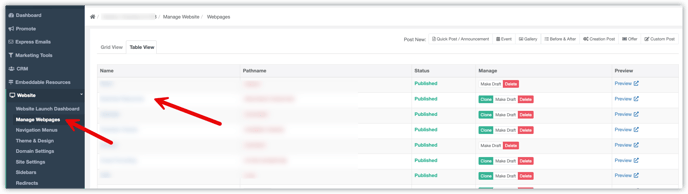
Then click on the Embeds option:

Step 2: Choose the Resource Type
From the Embed menu, select the type of Embeddable Resource you want to install, such as a calendar, directory, form, or other available feed.

Step 3: Select the Specific Resource
Once you choose a Resource type, you will see a list of all available options you have created in your account.
For example:
-
If you have multiple directories set up, select which directory should display on this page.
-
If you have multiple forms created, select the specific form you want embedded.

Step 4: Save the Page
Click 'Save Changes' on your web page to complete the installation. Once saved, the selected Embeddable Resource will appear directly on the page.

NOTE: If you want to change which feed is embedded, you can adjust your choice by clicking the Settings 'gear' icon in the toolbar above this block (red box above).
You can also move the feed to another place on the page by clicking and dragging the 'hamburger' icon on the left (red circle above).
If you make any of these changes, be sure to again click 'Save Changes' to complete the changes to your web page.
What’s Next
As new Embeddable Resources are introduced, they will follow this same framework. You will create the Resource in your Locable account, then install it on any page using the Embed option or embed code.
This keeps your website flexible, scalable, and easy to update as your content grows.
Installing an Embeddable Resource on a Non-Locable Website
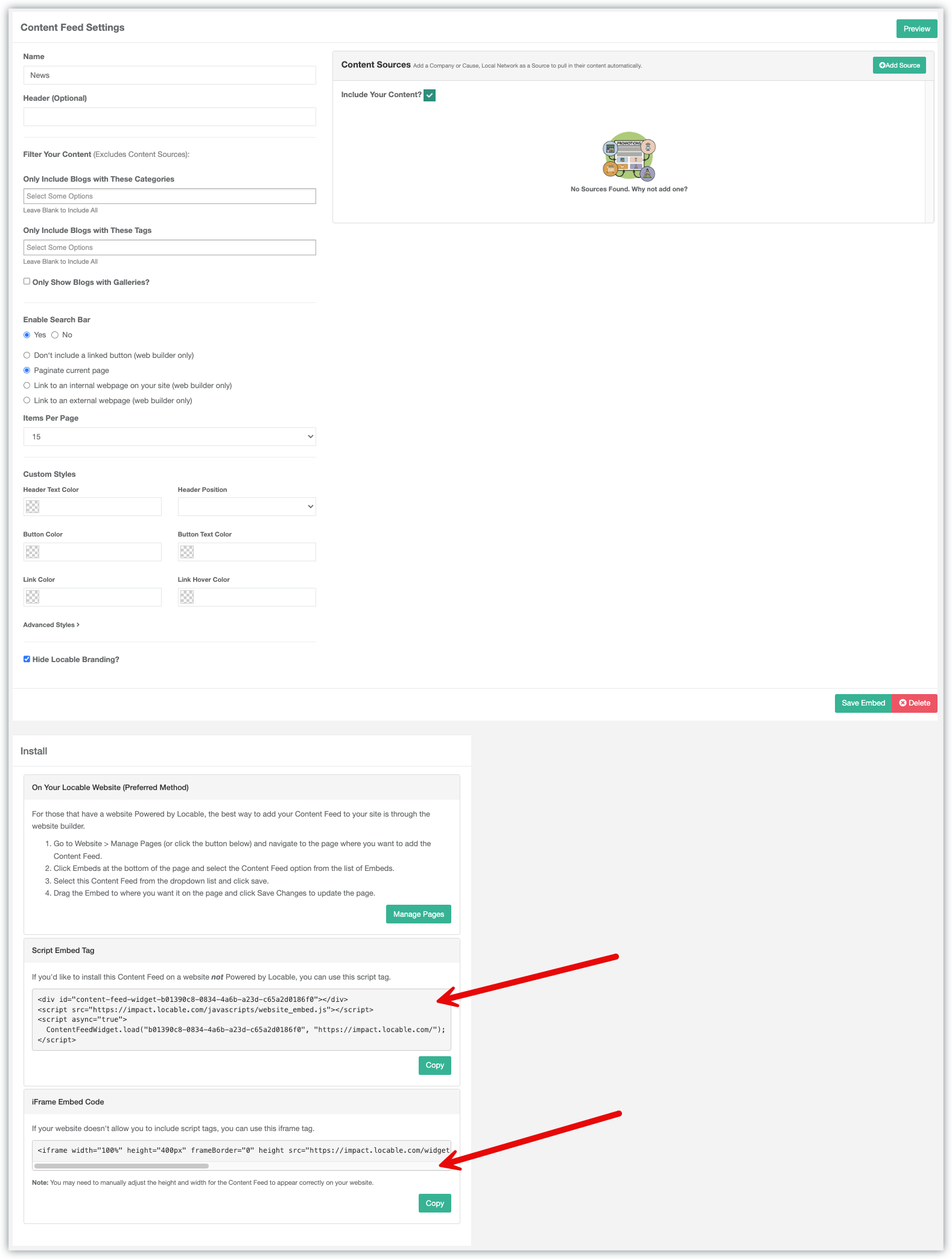
Embeddable Resources can be added to websites that are not powered by Locable using an embed code.
To get the Embed code, navigate to the tool where the Resource is managed, such as a calendar, directory, or content feed. Then locate the preferred Embed Code and copy to install on your website.